- Not every "not indexed" page is a problem. Redirects, duplicates and pages you deliberately hid are supposed to be there.
- Focus on pages that should be on Google but aren't, especially server errors, wrong noindex tags and robots.txt blocks.
- After fixing, click Validate fix so Google re-checks the affected pages.
Google Search Console is the most direct way to see your site the way Google sees it. It's also confusing. The reports are full of statuses with similar names, and an email saying "new issue detected" is enough to worry any business owner.
This guide covers the issues we see most often in the Page indexing report: what each one means, whether it actually matters, and how to fix it.
How to read the Page indexing report
Open Search Console, choose your property, then go to Indexing → Pages. You'll see two numbers, Indexed and Not indexed, and below them a table of reasons why pages aren't indexed.
The key question for every reason is simple: should these pages be on Google? Click a reason to see example URLs.
- If the URLs are old redirects, duplicates, admin pages or thank-you pages, the status is usually correct and you can leave it.
- If the URLs are real pages you want customers to find, like services, products or blog posts, that's a problem worth fixing.
Use URL Inspection (the search bar at the top) on any single page to see exactly what Google found: whether it's indexed, which canonical it chose and when it last crawled.
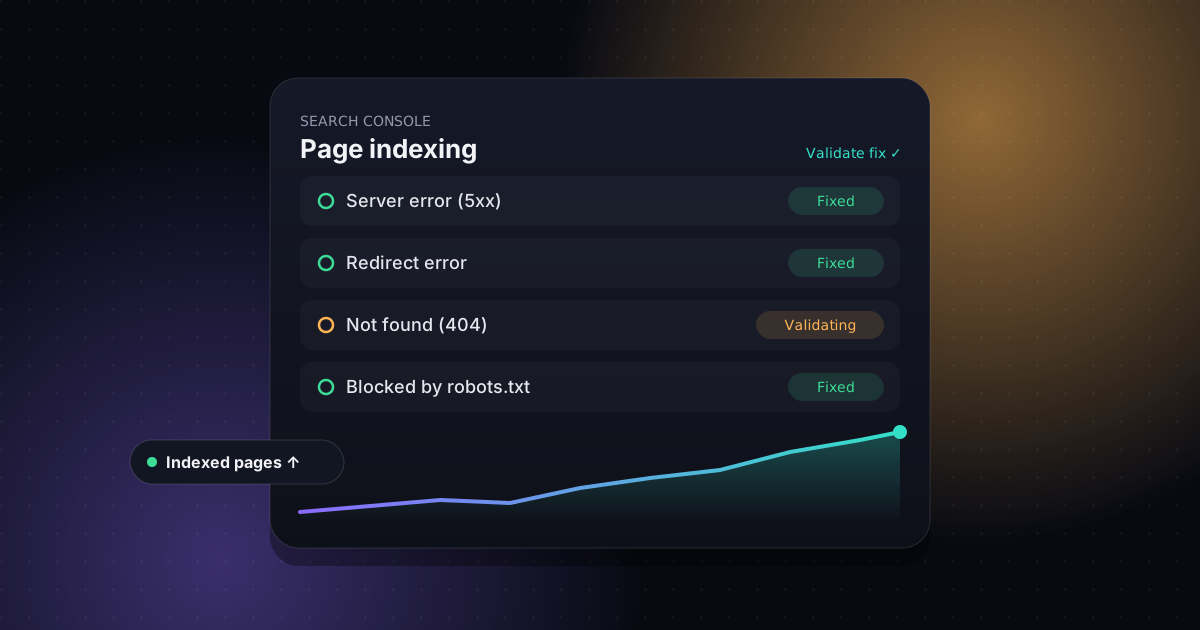
Server error (5xx)
Google tried to load the page and your server failed. This is the most urgent issue, because if it keeps happening, Google crawls your site less and can drop pages.
How to fix: open the example URLs yourself. If they load fine now, the errors were probably temporary, caused by downtime, a traffic spike or an overloaded server. If they happen repeatedly, check your server error logs, your hosting resources and any security plugin or firewall that might be blocking Googlebot. Persistent 5xx errors often mean it's time for better hosting.
Redirect error
Google followed a redirect that didn't end in a working page. The usual causes are redirect loops (A goes to B, which goes back to A), long chains of redirects, or redirects to a broken URL.
How to fix: test the URL with a redirect checker and make every redirect go straight to the final page in one step. This often appears after an HTTP to HTTPS move, or when changing between "www" and "non-www", if the rules were set up in more than one place.
Don't confuse this with Page with redirect. That status just means the URL redirects correctly, so Google indexes the destination instead. It's normal.
Not found (404) and soft 404
A 404 means the page doesn't exist. That's fine if you deleted it on purpose, and Google will eventually stop checking. It's a problem when:
- the page should exist (a broken link, or a changed URL without a redirect)
- other pages on your site still link to it
- it's still listed in your sitemap
How to fix: redirect old URLs (301) to the most relevant current page, update internal links and remove dead URLs from your sitemap. Don't redirect everything to the homepage. Google tends to treat that as a soft 404 anyway.
A soft 404 is a page that loads normally but looks empty or like an error to Google. Typical examples are empty category pages, "no products found" pages and very thin pages. Either add real content, or make the page return a proper 404 or redirect.
Blocked by robots.txt
Your robots.txt file tells Google not to crawl these URLs. That's right for admin areas, cart pages and internal search results, and wrong for anything customers should find.
How to fix: open yoursite.com/robots.txt and look for a Disallow rule that matches the blocked pages. A leftover Disallow: / from when the site was in development is a classic mistake that hides the whole website.
robots.txt stops crawling, not indexing. A blocked page can still appear in Google, which is what Indexed, though blocked by robots.txt means. To keep a page out of Google, allow crawling and add a noindex tag instead.
Excluded by 'noindex' tag
The page tells Google not to index it. That's correct for thank-you pages, private pages and thin tag archives, but sometimes it's on pages that should rank.
How to fix: on WordPress, first check Settings → Reading and make sure "Discourage search engines from indexing this site" is unchecked. It's often left on after launch. Then check your SEO plugin's settings for the affected post types, categories or individual pages.
Duplicate and canonical issues
When several URLs show the same content, Google picks one version, the canonical, and ignores the others. You'll see three related statuses:
- Alternate page with proper canonical tag: normal. Your duplicates correctly point to the main version.
- Duplicate without user-selected canonical: you haven't said which version is the main one, so Google picked for you.
- Duplicate, Google chose different canonical than user: you said one thing, but Google disagreed. Usually that's because your internal links, sitemap or redirects point at a different version.
How to fix: make sure every page has a canonical tag pointing to its preferred URL. Then keep everything consistent: internal links, sitemap URLs and redirects should all use that same version, including https, www or non-www, and a trailing slash or not.
Crawled or discovered, but not indexed
These two statuses aren't technical errors, but they're the ones business owners ask about most:
- Discovered – currently not indexed: Google knows the URL exists but hasn't crawled it yet. It's common on new sites and on large sites with many low-value URLs.
- Crawled – currently not indexed: Google looked at the page and decided not to index it, at least for now.
How to fix: there's no switch to flip. Make the page clearly useful and different from your other pages, link to it from relevant pages on your own site, and include it in your sitemap. For a handful of important pages, use URL Inspection and click Request indexing.
Core Web Vitals issues
Under Experience → Core Web Vitals, Search Console groups pages that are slow for real visitors by issue: LCP (loading), INP (responsiveness) and CLS (layout shifts). These don't stop pages from being indexed, but they affect user experience and can affect rankings.
We cover the usual causes and fixes in Why Is My WordPress Site So Slow?
After the fix: validate and monitor
- Open the issue in the Page indexing report and click Validate fix.
- Google re-checks the affected URLs. This often takes up to about two weeks, sometimes longer, and you'll get an email when it's done.
- Make sure your sitemap is submitted under Indexing → Sitemaps and shows "Success".
- Check the report again monthly, and after any redesign, migration or big plugin change.
If the report is full of issues and you're not sure which ones matter, a technical SEO audit sorts the real problems from the noise and fixes them in the right order.