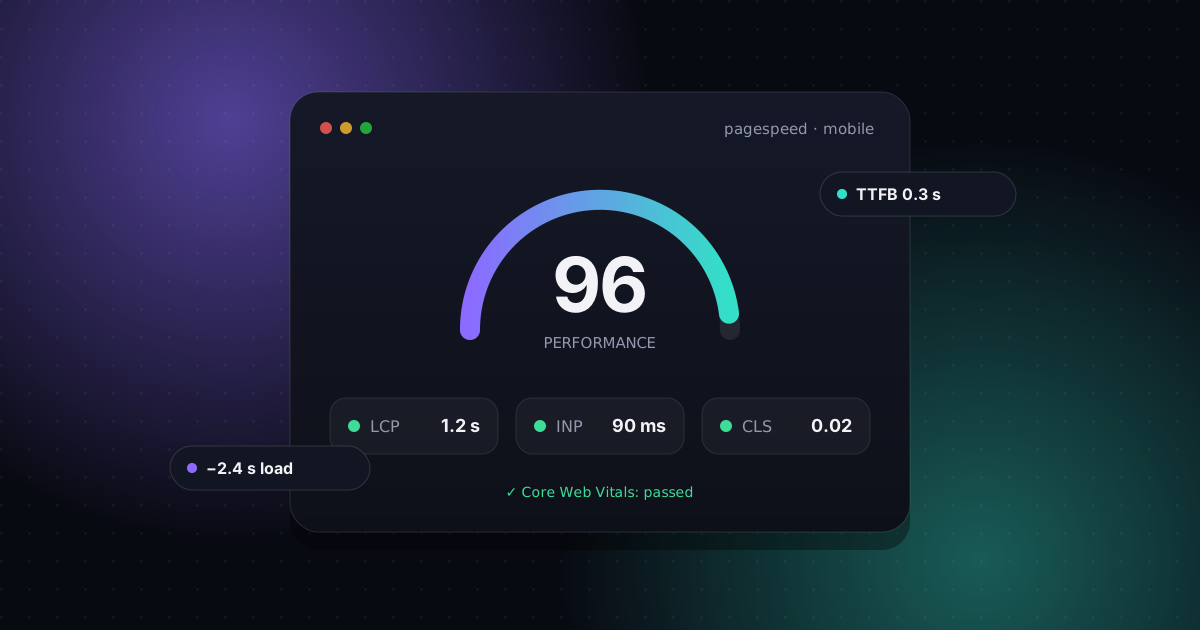
- Measure before you change anything. PageSpeed Insights shows how real visitors experience your site, not just a lab score.
- Most slow WordPress sites have the same few problems: weak hosting, no page caching, oversized images and too many heavy plugins or scripts.
- Fix the biggest bottleneck first. One right change usually does more than ten small tweaks.
A slow website costs you twice. Visitors leave before the page finishes loading, and Google uses page experience signals when it decides how to rank you. The good news: WordPress is rarely slow by itself. In almost every site we speed up, the cause is one of a handful of fixable problems.
Below are the nine fixes we use most often, roughly in the order we check them. Start at the top. The first few usually make the biggest difference.
First, measure what "slow" actually means
Run your homepage through PageSpeed Insights, then run one inner page too, like a product page or a blog post. Look at two parts of the report:
- Real-user data (the top section). This comes from actual Chrome visitors over the last 28 days, and it's what Google uses for ranking. It only appears once your site has enough traffic.
- Lab data (the diagnostics below it). This is a single simulated test. It's useful for finding causes, but the score moves around between runs.
The three numbers that matter are the Core Web Vitals:
- Largest Contentful Paint (LCP): how long the main content takes to appear. Good is 2.5 seconds or less.
- Interaction to Next Paint (INP): how quickly the page responds when someone taps or clicks. Good is 200 milliseconds or less.
- Cumulative Layout Shift (CLS): how much the layout jumps around while loading. Good is 0.1 or less.
Always check the mobile results. Most small-business traffic is on phones, and mobile results are almost always worse than desktop.
01Move to better hosting
If your server takes a long time to send the first byte of the page, nothing else you do will fully fix it. In PageSpeed Insights, look for "Reduce initial server response time", or check Time to First Byte (TTFB). A good TTFB is about 0.8 seconds or less.
Cheap shared hosting puts hundreds of sites on one server. When a neighbour gets busy, your site slows down. Quality managed WordPress hosting, or a well-configured VPS, often cuts load times more than any plugin can. If you do move, choose a data center close to your customers. A US audience should be served from the US.
02Turn on page caching
Without caching, WordPress rebuilds every page from the database on every visit. Page caching saves a ready-made copy of each page and serves that instead, which is far faster.
Many good hosts include server-level caching. If yours doesn't, a caching plugin such as WP Rocket, LiteSpeed Cache (on LiteSpeed servers) or WP Super Cache will do the job. Two rules:
- Use one caching plugin, not two. Stacked caching plugins conflict and can make things slower or break pages.
- Never cache the cart, checkout or account pages on a WooCommerce store. Most caching plugins exclude them automatically, but check.
03Compress and resize your images
Images are the most common reason a page is heavy. We regularly find 4,000-pixel photos straight from a camera or phone, shown in a 600-pixel box.
- Resize before uploading. Most images never need to be wider than about 2,000 pixels.
- Use modern formats. WordPress supports WebP and AVIF, which are much smaller than JPEG or PNG at the same quality. An optimization plugin like ShortPixel, Imagify or EWWW can convert your existing library.
- Don't lazy-load the main image. Lazy loading is great for images further down the page, but the hero image at the top should load right away, or your LCP gets worse.
04Audit your plugins
The number of plugins matters less than what they do. Five well-built plugins can be lighter than one bloated one. The problem plugins are the ones that load scripts and styles on every page, or run slow database queries.
The free Query Monitor plugin shows which plugins add slow queries and how long each page takes to build. Then, on a staging copy of your site, deactivate suspects one at a time and re-test. Common offenders are sliders, social feed widgets, related-post plugins, all-in-one "toolkit" plugins and anything you installed once and forgot about.
05Rethink a heavy theme or page builder
Multipurpose themes and page builders load a lot of code so they can do everything. That makes them convenient, and heavy. If your theme ships dozens of features you don't use, every visitor still downloads them.
You don't always need to rebuild. Many builders have performance settings, such as loading assets only where they're used, which help a lot. But if a site has outgrown its theme, a lightweight theme or a hand-coded front end can be dramatically faster.
06Cut third-party scripts
Chat widgets, tracking pixels, embedded videos, review badges and booking widgets all load code from other servers that you don't control. They're a frequent cause of poor INP, because they keep the browser busy when a visitor tries to interact.
- Remove tags for tools you no longer use. There are almost always a few.
- Load chat widgets after the page has finished loading, or when the visitor first interacts.
- Replace embedded YouTube videos with a lightweight preview image that loads the player only when clicked.
- Limit custom fonts to the weights you actually use.
07Update PHP and WordPress
WordPress runs on PHP, and newer PHP versions are significantly faster and more secure than old ones. Go to Tools → Site Health in your dashboard to see which version you're on. If it says your PHP is outdated, your host can usually upgrade it with one click.
Test on a staging site first. Very old plugins and themes sometimes break on newer PHP, and it's better to find that out before your customers do.
08Clean up the database
Over the years the database fills up with old post revisions, spam comments, expired temporary data and settings left behind by deleted plugins. Some of that data is loaded on every single page request.
A cleanup plugin such as WP-Optimize can remove the junk safely. You can also limit how many revisions WordPress keeps per post. Always take a full backup first. Database cleanups are safe when done carefully, and painful when they're not.
09Use a CDN
A content delivery network (CDN) keeps copies of your images, CSS and JavaScript on servers around the world, so visitors download them from somewhere close by. If your customers are spread across the US, Canada, the UK and Europe, a CDN like Cloudflare makes your site faster for all of them, not just the ones near your server.
What not to waste time on
- Chasing a perfect 100 score. The lab score is a diagnostic tool. Passing Core Web Vitals for real visitors is what counts.
- "Combine and minify everything". Aggressive optimization settings can break menus, forms and checkouts. Turn options on one at a time and test.
- Installing another plugin to fix plugin bloat. Remove what you don't need first.
When to get help
If you've worked through the list and your site is still slow, or you'd rather not risk breaking a live site, that's exactly what we do. We find the real bottleneck, fix it on a staging copy first, and show you the before-and-after results.